When a travel eSIM shows no signal or "No Service" on an iPhone, the cause is almost always one of three settings, not a broken eSIM: Data Roaming is off for that line, the eSIM is not the line chosen for Cellular Data, or the phone is still clinging to the wrong network. Work through the nine checks below in order; most phones are online by step 3, and steps 4 to 7 cover carrier settings, a network reset and a carrier-locked iPhone. Checked on October 22, 2026 against Apple's own support pages.
The nine fixes, in the order we try them
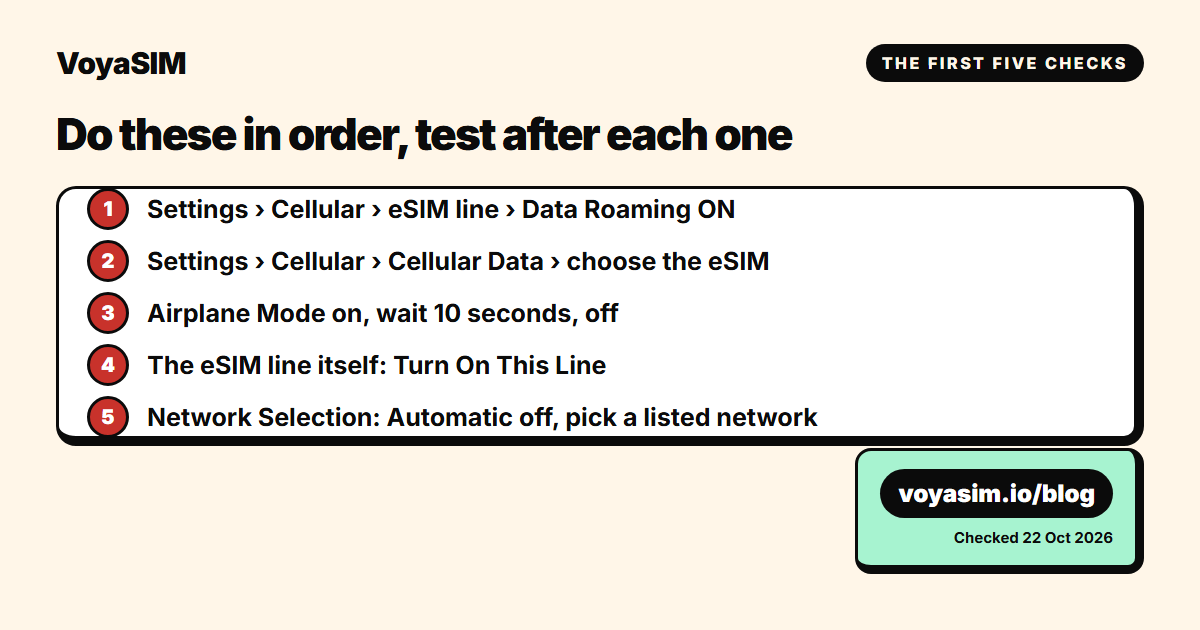
Most "eSIM not working" messages we get are solved by the first three steps. Do them in order and test after each one: open Control Center (swipe down from the top-right corner) and look for the carrier name and signal bars for the eSIM line.
- Turn Data Roaming on for the eSIM line. Settings > Cellular > tap the travel eSIM line > Data Roaming on. A travel eSIM is a foreign plan to your iPhone, so without roaming the line connects to nothing. Leave Data Roaming off on your home SIM line so it never buys a day pass by accident.
- Make the eSIM the line used for cellular data. Settings > Cellular > Cellular Data > choose the travel eSIM. If your home SIM is still selected here, the eSIM sits idle even though it is installed and turned on.
- Airplane Mode on, wait ten seconds, off. This forces the phone to search for a network again. After landing this is the step that most often brings the bars back, because the phone was still holding on to a network from the air or the previous country.
- Check that the line is turned on. Settings > Cellular > the eSIM line > "Turn On This Line" must be on. A line that was switched off at home stays off abroad.
- Pick the network by hand. Settings > Cellular > the eSIM line > Network Selection > turn Automatic off and choose one of the networks listed on your plan page (the "Networks" row on every VoyaSIM plan). Some phones hang on a network that refuses the eSIM; choosing another one fixes it in seconds. Turn Automatic back on afterwards.
- Update carrier settings. Settings > General > About, then scroll to the eSIM section. If an update is available, a prompt appears; tap Update. Apple lists this as one of the standard checks when an eSIM will not come up.
- Restart the iPhone. Apple's own troubleshooting page puts this right after the airplane-mode toggle, and it clears a surprising number of stuck states.
- Reset Network Settings. Settings > General > Transfer or Reset iPhone > Reset > Reset Network Settings. This removes saved Wi-Fi passwords, VPN configurations and cellular preferences; it does not delete the eSIM. Set the eSIM as the Cellular Data line again afterwards (step 2) and turn roaming back on (step 1).
- Confirm the iPhone is unlocked. Settings > General > About > Carrier Lock. It must read "No SIM Restrictions". A carrier-locked iPhone accepts only that carrier's plans, and no travel eSIM from any provider will work until the carrier unlocks it.
If the eSIM still shows nothing after step 9, skip to "When nothing works" at the end: there are three situations the phone cannot fix by itself.
Why a working eSIM shows "No Service"
An eSIM is only a profile: it tells the phone which networks it may join and with which credentials. Three things have to line up before data flows.
The line has to be allowed to roam. iOS treats every line separately. Your home SIM may have roaming off (sensible, it avoids surprise bills), and a new eSIM inherits nothing from it. A travel eSIM is, technically, always roaming, so its own Data Roaming switch must be on. This is the single most common cause we see in support: the plan is fine, the switch is off.
The eSIM has to be the data line. iPhones with two active lines let you choose which one carries cellular data. People install the eSIM, see it in the list, and assume the phone will use it. It will not unless it is selected under Cellular Data. With "Allow Cellular Data Switching" on, the phone can also fall back to the home SIM when the eSIM is weak, which means a home-carrier roaming charge; we recommend leaving that switch off during the trip.
The phone has to find a partner network. A travel eSIM usually works on one to four networks in a country; VoyaSIM lists them on the plan page. After landing, the phone scans and joins one automatically, which can take a minute. If it latched onto a network that is not on the list (for example while taxiing, from a tower across the border), it may sit on "No Service" until you toggle airplane mode or pick the network manually.
Two things that are not the problem: the data amount (a plan with data left does not go to "No Service" when it runs out; it just stops moving data) and the time zone (validity is counted from the first connection, not from a clock on the phone).
Before you fly: the three settings that prevent all of this
Install the eSIM at home over Wi-Fi, where you can read the instructions calmly. On iOS 17.4 or later you can press and hold the QR code in the email and tap Add eSIM; on any iPhone XR or later you can scan it with the Camera app and tap the Cellular Plan Detected notification, then Continue and Add Cellular Plan. Give the line a name you will recognize, such as "Japan".
Then set it up for the trip but leave it switched off until you land:
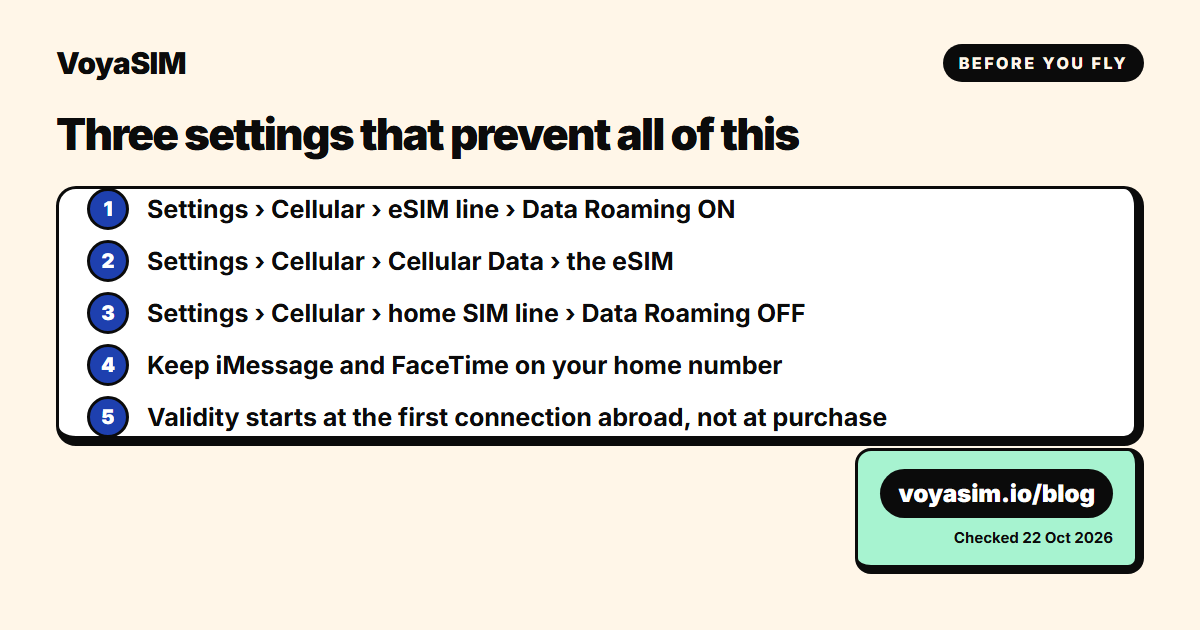
- Settings > Cellular > the eSIM line > Data Roaming on.
- Settings > Cellular > Cellular Data > choose the eSIM (you can do this at the airport, before switching airplane mode off).
- Settings > Cellular > your home SIM line > Data Roaming off.
A VoyaSIM plan only starts counting when the phone first connects to a network at the destination, so installing early costs nothing. Keep iMessage and FaceTime on your home number: they keep working over the eSIM's data.
Fixes for the specific messages you might see
"No SIM" or the line is missing from Settings > Cellular. The eSIM is not installed (the QR code was never completed) or it was deleted. A QR code installs once; if you deleted the profile, the provider has to issue a new one. VoyaSIM reissues a plan that was never used; write to support with the order number.
"Unable to Complete Cellular Plan Change" while scanning. The phone needs Wi-Fi or another working data connection to download the profile. Join Wi-Fi, then scan again. Apple notes that in some countries eSIM-only iPhones can activate without Wi-Fi, but the safe assumption is: Wi-Fi first.
"Cellular Plan Cannot Be Added" or "This code is no longer valid". The code was already used, on this or another phone. Check Settings > Cellular for a line you may have installed earlier under a different name before asking for a new code.
Bars, but no internet. Data Roaming is off (step 1), or a VPN app is intercepting the connection. Turn the VPN off, toggle airplane mode, test again. Also check that Low Data Mode is not blocking background apps: Settings > Cellular > the eSIM line > Low Data Mode.
Internet works, calls do not. Expected. VoyaSIM plans are data only; calls and texts stay on your home SIM, and apps such as WhatsApp or FaceTime carry voice over the eSIM's data.
Works in the city, drops in the countryside. Normal network coverage. Switch Network Selection back to Automatic so the phone can move between partner networks, and expect gaps on trains and in the mountains that every network has.
When nothing works
Three situations need a person, not a setting:
- The iPhone is carrier-locked. Only the carrier that sold the phone can unlock it, usually after the contract is paid off. Until then no travel eSIM will connect.
- The iPhone is older than XR / XS. iPhone X, 8 and earlier have no eSIM hardware; Apple lists iPhone XS, XS Max and XR as the first models with eSIM.
- The plan was issued for a different region. A Japan plan has no networks in Korea. Check the plan page's coverage list, and buy the right destination; a plan that was never activated can be refunded.
Write to support with the order number, the iPhone model and the exact message on the screen. Apple suggests collecting the IMEI or EID (Settings > General > About) before contacting any carrier; it helps us too, because the EID identifies the eSIM profile on the supplier side.
Staying online abroad
For the trip itself you want a plan whose networks you can pick by hand if needed. In Japan, for example, VoyaSIM's 3 GB for 15 days plan costs $4.20 (checked on October 22, 2026) and runs on KDDI/au, NTT docomo, Rakuten Mobile and SoftBank, so step 5 above always has an alternative to try. Install it at home, keep it switched off until the plane lands, and the validity timer starts at the first connection in Japan, not at purchase.
Every destination's networks are listed on its page at voyasim.io/esim, and the help center has the short version of this article for when you are standing at a baggage belt: No signal after landing.
By the VoyaSIM support team — we answer these questions every day for travelers in 200+ countries. Last checked: October 22, 2026.
Frequently asked questions
Why does my eSIM say No Service?
Usually because Data Roaming is off for the eSIM line, or because the iPhone is still trying to use your home SIM for data. Turn Data Roaming on for the travel eSIM and set it as the Cellular Data line.
Do I need to turn data roaming on for a travel eSIM?
Yes. A travel eSIM is a foreign plan from the iPhone's point of view, so its line needs Data Roaming on. Keep roaming off on your home SIM so that line never buys a day pass.
Why is my eSIM not working after landing?
Give it a minute after airplane mode goes off: the phone has to find a partner network. If nothing appears, pick the network by hand under Settings > Cellular > the eSIM line > Network Selection.
Does Reset Network Settings delete my eSIM?
No. It clears Wi-Fi passwords, VPN and cellular preferences, and the eSIM stays installed. Deleting the eSIM is a separate action under the line's settings, and that does remove it.
Can I reinstall an eSIM QR code twice?
No. A QR code installs once. If you deleted the eSIM, contact the provider; VoyaSIM can reissue the plan when it has never been used.
Why won't my eSIM activate on a carrier-locked iPhone?
A locked iPhone only accepts its own carrier's plans. Check Settings > General > About > Carrier Lock; it must say No SIM Restrictions to use any travel eSIM.
Sources & methodology
Plan prices on this page come from the live VoyaSIM catalog. Every other figure was checked against the sources below as of October 26, 2026.
- Apple Support, "If you can't set up an eSIM on your iPhone" (published April 23, 2026), read October 22, 2026
- Apple Support, "Set up eSIM on iPhone", read October 22, 2026
- Apple Support, "Use eSIM while traveling internationally with your iPhone", read October 22, 2026
- VoyaSIM help center, "No signal after landing"
- VoyaSIM Japan catalog (live prices), read October 22, 2026