On a Samsung Galaxy, a travel eSIM that shows no data is usually switched off in SIM manager, has Data roaming off, or is not set as the mobile data SIM. Fix those three first, then toggle Airplane mode and pick the network by hand. Check the APN, restart, update and, as a last step, reset network settings. Never delete the eSIM while troubleshooting.
The 9 fixes, in the order to try them
Most Samsung eSIM problems abroad trace back to one of three switches: the travel eSIM is turned off, data roaming is off for that line, or mobile data is still assigned to your home SIM. Work through the list below from the top and test a web page after each step. Steps 1 to 5 fix most cases in under five minutes, and none of them deletes anything.
| # | Fix | Where on a Galaxy (One UI) | Time |
|---|---|---|---|
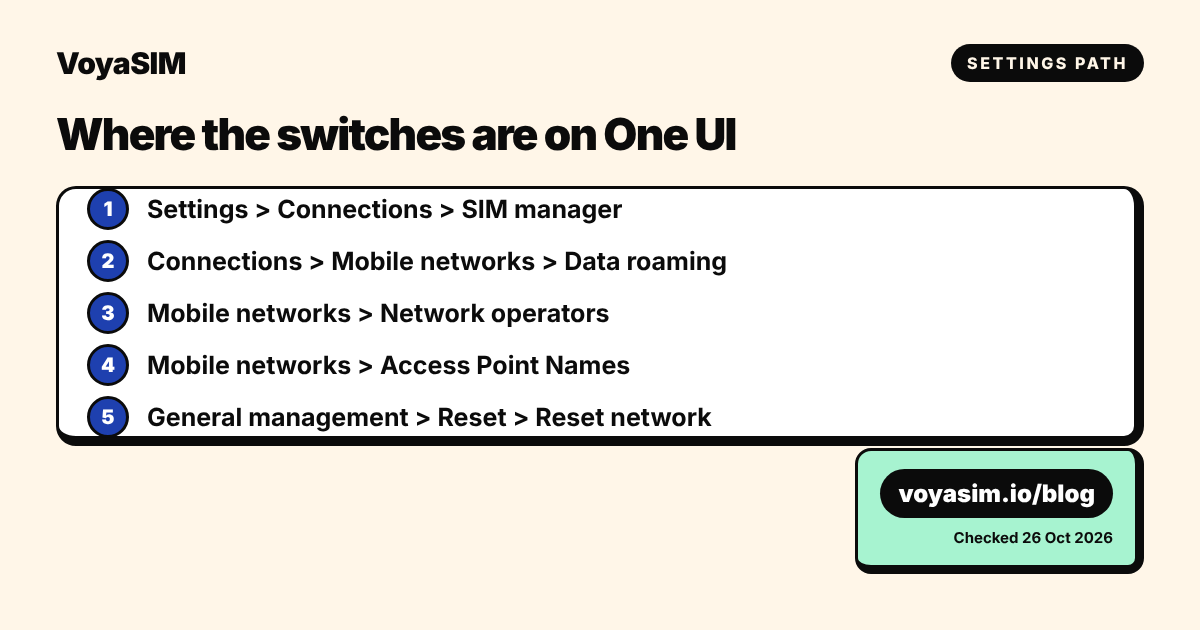
| 1 | Turn the travel eSIM on | Settings > Connections > SIM manager > switch next to the eSIM | 10 s |
| 2 | Turn on Data roaming for the eSIM | Settings > Connections > Mobile networks > Data roaming | 10 s |
| 3 | Make the eSIM your mobile data SIM | Settings > Connections > SIM manager > Mobile data | 10 s |
| 4 | Airplane mode on for 10 seconds, then off | Quick panel (swipe down) > Airplane mode | 20 s |
| 5 | Choose the network by hand | Mobile networks > Network operators > turn off Select automatically | 1–2 min |
| 6 | Check the APN | Mobile networks > Access Point Names | 1 min |
| 7 | Restart the phone | Side key + Volume down > Restart | 1 min |
| 8 | Update the software | Settings > Software update > Download and install | 5–20 min |
| 9 | Reset network settings | Settings > General management > Reset > Reset network settings | 2 min |
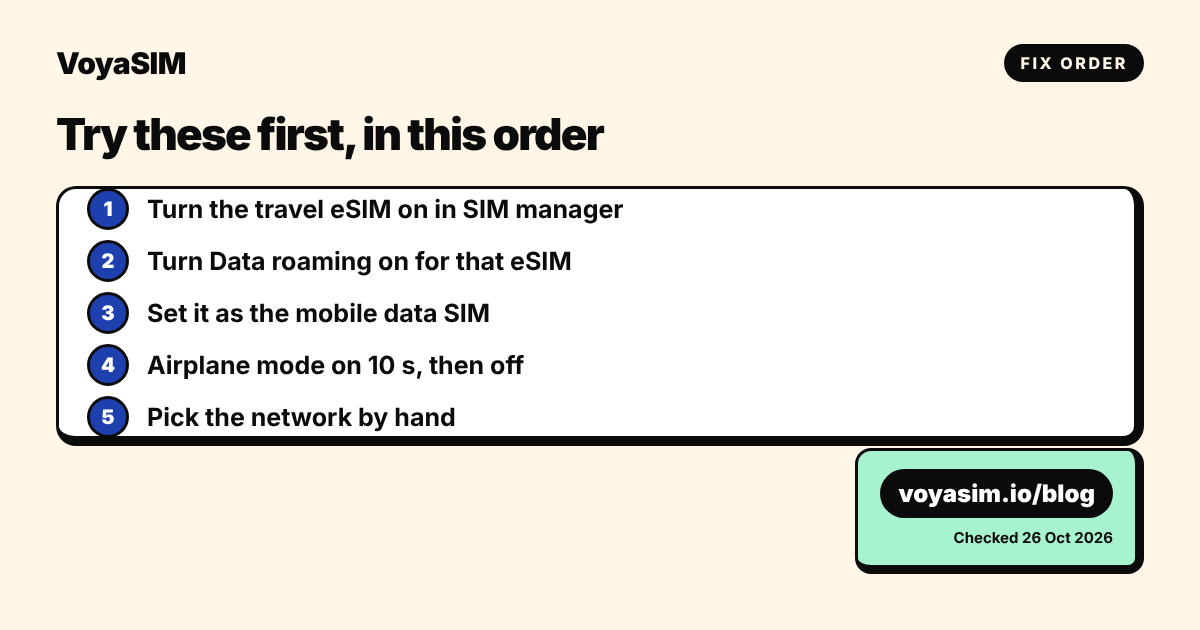
1. Turn the travel eSIM on. Open Settings > Connections > SIM manager. Your travel eSIM is listed under eSIMs. If its switch is grey, tap it. Samsung's support pages say that on most Galaxy models only one eSIM can be active at a time, so turning on the travel eSIM may switch another eSIM off. A physical SIM can stay on alongside it.
2. Turn on Data roaming for that line. Go to Settings > Connections > Mobile networks and turn on Data roaming. A travel eSIM is always roaming abroad, even when you paid for it, so without this switch it connects to the network but moves no data. Samsung notes the switch is greyed out until Mobile data is on. On some US carrier models the label reads "Data roaming access". If you keep your home SIM active, make sure roaming is on for the travel eSIM, not just the home line, and consider leaving the home line's roaming off to avoid carrier charges.
3. Make the eSIM your mobile data SIM. In SIM manager, look at Preferred SIM (labelled "Primary SIM" on some US models) and set Mobile data to the travel eSIM. Calls and texts can stay on your home number. If data is still pointed at your home SIM, the phone shows signal bars from the travel eSIM but loads nothing. Also turn off "Auto data switching" if you see it, so the phone does not drift back to the home line.
4. Toggle Airplane mode. Swipe down twice, tap Airplane mode, wait 10 seconds and tap it again. This makes the phone register with the local network from scratch. It is the fastest fix right after landing, when the phone is often still trying the network it last used at home.
5. Pick the network by hand. Go to Settings > Connections > Mobile networks > Network operators, turn off "Select automatically" and wait for the list to load (up to two minutes). Choose one of the networks named in your plan details. If the first one fails, try the next. When you leave the country, switch "Select automatically" back on.
6. Check the APN. Most travel eSIMs set the APN on their own. If data still does not move, open Settings > Connections > Mobile networks > Access Point Names, make sure the travel eSIM is the selected SIM at the top, and compare the APN with the one in your installation email. If it differs, tap the three dots > Reset to default, or add a new APN with the value from the email and select it.
7. Restart. Hold the Side key and Volume down, then tap Restart. Samsung also describes a forced restart (hold both keys until the logo appears) that keeps your data and files.
8. Update the software. Settings > Software update > Download and install. Samsung lists this as the first check in its own mobile data troubleshooting guide. Do it on Wi-Fi.
9. Reset network settings. Settings > General management > Reset > Reset network settings (on some US models: Reset mobile network settings). This clears saved Wi-Fi networks, Bluetooth pairings and APN changes. Samsung states that it does not delete apps or personal data. Installed eSIMs stay in SIM manager. Use it only after steps 1 to 8.
Why a Samsung eSIM stops working abroad
In most cases the eSIM itself is fine and a setting is pointing the phone at the wrong line. A Galaxy with a travel eSIM holds two or more profiles, and each has its own on/off switch, its own roaming switch and its own APN. Data can only use one of them at a time. One wrong switch is enough to show full bars and no internet.
The common causes, with what each one looks like:
| Cause | What you see | Fix |
|---|---|---|
| Data roaming off on the eSIM | Signal bars, no data, sometimes an "R" icon | Step 2 |
| Mobile data still on the home SIM | Bars on the eSIM, data stuck or roaming charges at home | Step 3 |
| eSIM turned off or another eSIM active | eSIM greyed out in SIM manager | Step 1 |
| Phone stuck on a network the plan does not use | "Emergency calls only" or "No service" | Steps 4–5 |
| Wrong or missing APN | Connected, but pages never load | Step 6 |
| Phone carrier-locked | "SIM not supported" or the eSIM will not activate | Ask your home carrier to unlock |
| Model or region without eSIM | No "Add eSIM" option at all | See the next section |
Carrier locks deserve a separate word. A Galaxy bought on contract from a carrier may only accept that carrier's profiles. Samsung says that devices changing carriers "may need to be SIM unlocked" and refers you to the original carrier for its unlock policy. The unlock is free in many countries once the contract is paid off, but it takes from minutes to several days, so request it before you travel.
Check that your Galaxy supports eSIM at all
If SIM manager has no "Add eSIM" option, your model or its regional version does not support eSIM, and no setting will change that. This catches many A-series owners. Samsung's own eSIM support page, checked on 26 October 2026, lists support like this:
| Model group | eSIM support (per Samsung) |
|---|---|
| Galaxy S20 to S26 series, including FE and Edge models | Yes |
| Galaxy Z Fold and Z Flip, from the first models to Fold8 and Flip8 | Yes |
| Galaxy A57, A56, A55, A37 | Yes |
| Galaxy A54 | Europe, North America, Korea, Japan |
| Galaxy A36, A35 | Europe, North America, Korea |
| Galaxy A27, A26, A17 5G, A16 5G | North America only |
| Galaxy A25 5G, A23 5G | Japan only |
| Wi-Fi-only Galaxy tablets | No |
Samsung adds that "depending on the country of origin, eSIM may not be supported even if your device is listed". Models sold in mainland China and Hong Kong are the usual exceptions. To check your exact phone, open Settings > Connections > SIM manager and look for "Add eSIM", or follow our compatibility guide at Is my phone eSIM compatible?.
Step by step: installing and switching the eSIM on a Galaxy
The cleanest setup is to install the eSIM at home on Wi-Fi and switch it on after landing. Samsung's install path is the same on S, Z and A models:
- Settings > Connections > SIM manager > Add eSIM.
- Tap Scan QR code and scan the code from your email, or tap Enter activation code and paste the SM-DP+ address and activation code.
- Name the eSIM (for example "Travel") so you can tell the lines apart.
- When asked, leave calls and texts on your home SIM and leave mobile data on your home SIM until you travel.
- Restart the phone, as Samsung recommends after adding an eSIM.
After landing:
- Settings > Connections > SIM manager: turn the travel eSIM on.
- In SIM manager, set Mobile data to the travel eSIM.
- Settings > Connections > Mobile networks: turn Data roaming on.
- Toggle Airplane mode once.
The full walkthrough with screenshots is at How do I install the eSIM on an Android phone?.
These paths are written for One UI 6, 7 and 8. Older One UI versions call SIM manager "SIM card manager", and some carrier builds rename items. If a label differs, search the Settings app for "SIM" or "roaming".
Edge cases: when the fixes above do not apply
If none of the nine fixes worked, the problem is usually outside the phone's settings. Check these before anything else.
- The QR code fails to install. Errors such as "Unable to add eSIM" usually mean no internet during setup or a code that was already used. A QR code installs once. Connect to Wi-Fi and try again. Do not scan the same code on a second phone.
- You deleted the eSIM. A deleted travel eSIM cannot be reinstalled from the same QR code on most networks. Contact support before buying again. Never delete the eSIM as a troubleshooting step.
- The plan has not started or has ended. Check the plan status in your VoyaSIM account. Validity starts at the first connection in the covered country; see When does my plan start?.
- Data runs out mid-trip. A finished data allowance looks exactly like a broken eSIM: bars but no data. Check remaining data in your account and top up.
- The phone shows "No service" in the arrivals hall. Many airports have weak indoor coverage for some networks. Walk outside or wait 10 minutes. Our no-signal guide covers this case.
- Dual eSIM limits. If you already use two eSIMs at home, you may need to switch one off before the travel eSIM can be active, because most Galaxy models run one eSIM at a time.
If you have tried everything, contact VoyaSIM support with your order number, your phone model and a screenshot of SIM manager. We can check from our side whether the eSIM has registered on a network and re-issue the profile if needed.
In the Samsung community threads we read, travelers most often reported that the roaming switch or the mobile data SIM was the fix, and a factory reset was rarely needed. We do not recommend a factory reset for an eSIM problem.
Staying online abroad
For a trip across Europe, the VoyaSIM Europe 10 GB plan covers 31 countries for 31 days at $8.40 (checked on 26 October 2026): Europe 10 GB / 31 days. Install it before your flight on Wi-Fi; validity only starts at the first connection in a covered country, so installing early costs you no days. Other plans and destinations are at voyasim.io/esim/europe.
By the VoyaSIM support team — we answer these questions every day for travelers in 200+ countries. Last checked: 26 October 2026.
Frequently asked questions
why is my esim not working on samsung
Usually the travel eSIM is switched off in SIM manager, Data roaming is off for it, or mobile data is still on your home SIM. Check those three under Settings > Connections.
how do i turn on data roaming on samsung
Go to Settings > Connections > Mobile networks and turn on Data roaming. The switch is greyed out until Mobile data is on.
why does my samsung not have the add esim option
Your model or its regional version does not support eSIM. Several Galaxy A models support eSIM only in North America, Japan or Europe, per Samsung.
can i have two esims active on samsung
Samsung says only one eSIM can be active at a time on most Galaxy models. A physical SIM can stay on alongside it.
does reset network settings delete esim samsung
No. It clears Wi-Fi, Bluetooth and mobile network settings but keeps apps, data and installed eSIMs. Do not delete the eSIM itself.
Sources & methodology
Plan prices on this page come from the live VoyaSIM catalog. Every other figure was checked against the sources below as of October 26, 2026.
- Samsung US, SIM cards for your Galaxy phone or tablet (read 26 Oct 2026)
- Samsung Singapore, Galaxy eSIM and supported network carriers (read 26 Oct 2026)
- Samsung UK, How to troubleshoot mobile data issues (read 26 Oct 2026)
- Samsung UK, How to turn international data roaming on or off (read 26 Oct 2026)
- Samsung UAE, How to use an eSIM and SIM card on a Galaxy phone (read 26 Oct 2026)
- Samsung UK, What is an APN and how to change mobile network settings (read 26 Oct 2026)
- VoyaSIM live package API, Europe region (read 26 Oct 2026)